Pocket Bluetooth Keyboard for MacBook, iPad & iPhone

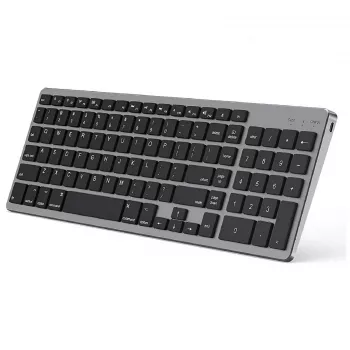
Ultra Slim Bluetooth Wireless Keyboard for Apple MacBook, iPad, and iPhone
A lightweight keyboard can turn an iPad or iPhone into a more comfortable writing and editing setup, and it can also serve as a simple, portable input option for a MacBook. An ultra slim Bluetooth keyboard focuses on the practical wins that show up every day: quicker typing, better text navigation, easier posture choices, and a grab-and-go footprint that actually fits in smaller bags. Below is what to expect, how pairing works across Apple devices, and the details that matter once the novelty wears off.
Who this keyboard fits best
This style of keyboard is a strong match for Apple-centric routines where portability and fast setup matter more than a full mechanical desktop feel.
- iPad users who want a thinner alternative to bulkier cases and keyboard covers for notes, email, and documents
- iPhone users who regularly type longer messages, manage spreadsheets, or remote into a desktop setup
- MacBook owners who want an extra keyboard for a desk, dorm, or shared workspace
- Travelers and commuters who prioritize low weight, minimal bag space, and quick setup
- Students working across multiple Apple devices during the day (phone for quick tasks, iPad for class notes, MacBook for assignments)
If you want a straightforward, portable option, the Ultra Slim Bluetooth Wireless Keyboard for Apple MacBook, iPad, and iPhone is built around that “carry less, type more” idea.
What an ultra slim Bluetooth keyboard changes in daily use
On-screen typing is fine for short replies, but long-form work and frequent editing benefit quickly from physical keys.
- Faster long-form typing than on-screen keyboards for essays, meeting notes, and captioning
- More precise editing: arrow-key navigation and quick cursor movement compared with touch-only selection
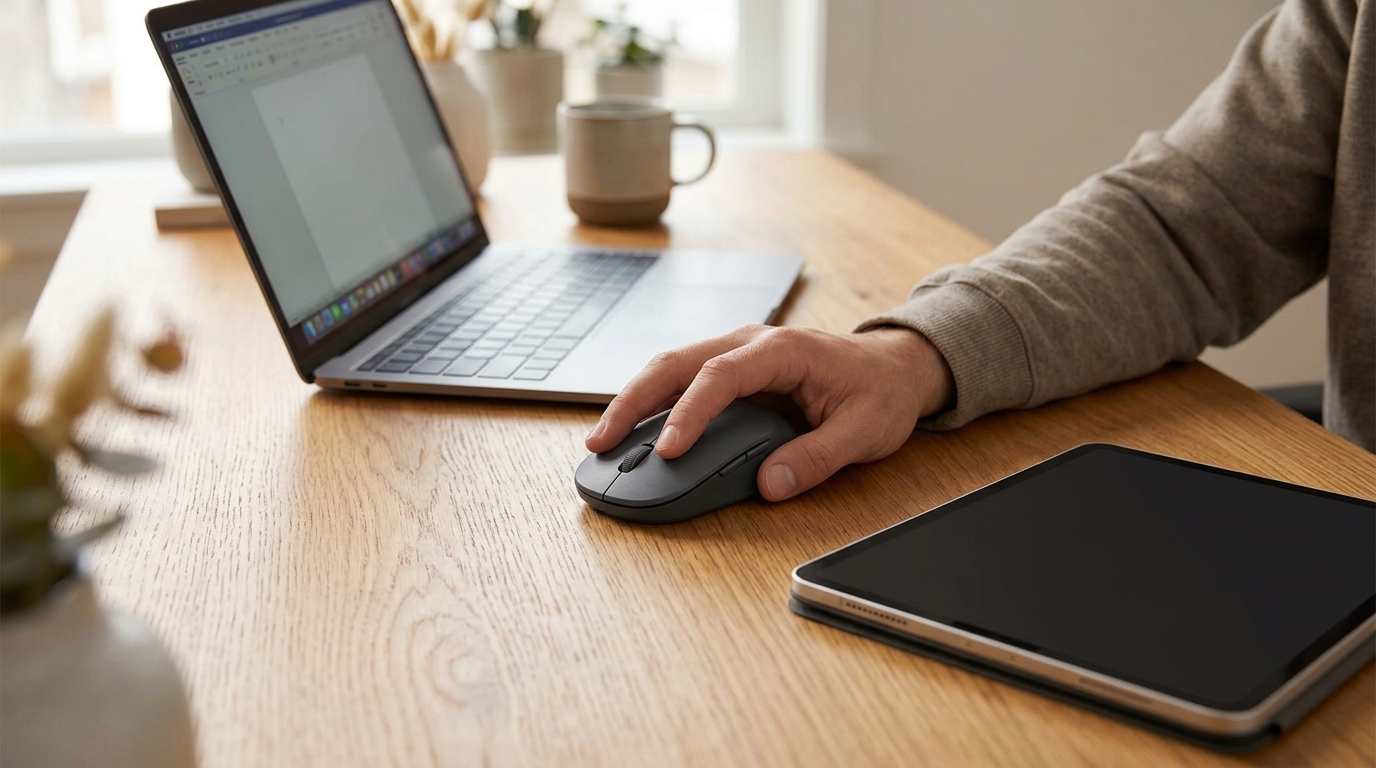
- Better posture options by letting the iPad or iPhone sit on a stand at eye level while hands type lower
- Quieter, more discreet input in libraries or shared spaces (depending on key mechanism and surface)
- A consistent typing feel across MacBook, iPad, and iPhone, reducing day-to-day device switching friction
One of the biggest upgrades is separating “screen position” from “typing position.” With a stand, the display can sit higher (reducing neck bend) while your wrists stay lower on the desk.
Compatibility and pairing with Apple devices
Bluetooth keyboards generally work well across macOS, iPadOS, and iOS, as long as Bluetooth is enabled and the keyboard is in pairing mode. For Apple’s official guidance, reference Apple Support: Use a Bluetooth accessory with your iPhone, iPad, or iPod touch and Apple Support: Connect a Bluetooth device with your Mac.
- Works with Bluetooth-enabled Apple devices: MacBook (macOS), iPad (iPadOS), and iPhone (iOS)
- Pairing basics: enable Bluetooth on the device, place the keyboard in pairing mode, then select it from the Bluetooth device list
- After initial pairing, reconnection is typically automatic when Bluetooth is on and the keyboard is awake/charged
- For iPad and iPhone, a keyboard can improve navigation and editing in apps like Notes, Mail, Pages, Google Docs, and many third-party editors
- On Mac, Bluetooth keyboards can be used for login screens once paired and saved (behavior can vary by OS version and settings)
Quick pairing checklist
| Step | What to do | Where to look on Apple devices |
|---|---|---|
| 1 | Turn on Bluetooth | Settings > Bluetooth (iPhone/iPad), System Settings > Bluetooth (Mac) |
| 2 | Put keyboard into pairing mode | Use the keyboard’s Bluetooth/pair button or key combo (see included instructions) |
| 3 | Select the keyboard name | Tap/click it in the device list |
| 4 | Confirm if prompted | Enter a code on the keyboard or accept the pairing request if shown |
| 5 | Test typing | Open Notes or a text field and confirm keys register correctly |
Comfort, layout, and productivity details to pay attention to
- Key spacing and travel: slimmer designs can feel different from laptop keyboards; a short adjustment period is normal.
- Stability: typing is more comfortable on a firm surface; thin keyboards can flex on soft surfaces like a bed or couch cushion.
- Shortcut keys: many Bluetooth keyboards include multimedia/brightness keys; behavior can vary on iPadOS and iOS.
- Language/layout: confirm the keyboard layout matches the desired region (US, UK, etc.) and set the input language in device settings.
- iPadOS speed boosts: common shortcuts like Command+C/V (copy/paste) and Command+Tab (app switching) make an iPad feel much closer to a small laptop; see Apple Support: iPad keyboard shortcuts.
Power, charging, and travel practicality
At-a-glance overview
Product snapshot
| Item | Details |
|---|---|
| Name | Ultra Slim Bluetooth Wireless Keyboard for Apple MacBook, iPad, and iPhone |
| Price | 24.97 USD |
| Stock | In stock |
| Use cases | Notes, email, documents, travel setup, spare keyboard for desk |
Small add-ons that pair well with a mobile Apple setup
- Gold Metal Decorative Ring Charms for Apple Watch Bands for a quick style refresh that matches a minimalist everyday-carry vibe
- Luminous Wooden LED Light Globe 3D Puzzle Model Kit as a desk-friendly accent light or gift for a dorm/workspace
- Minimalist Bow Knot Bangle Bracelet for a simple accessory option that works well as a small gift add-on
FAQ
How do you connect a Bluetooth keyboard to an iPad or iPhone?
Open Settings, tap Bluetooth, and turn it on. Put the keyboard into pairing mode, select it from the device list, and follow any on-screen prompt; then test it in Notes or any text field.
Can one Bluetooth keyboard be used with a MacBook and an iPad?
Yes, it can be paired with multiple devices, but switching depends on the keyboard. Some models include device-switch keys, while others require selecting the keyboard again from the Bluetooth menu on the device you want to use.
Why does the keyboard disconnect or lag while typing?
Common causes include low battery, wireless interference, being too far from the device, or Bluetooth needing to be toggled off and back on. If it continues, removing the keyboard from Bluetooth settings and pairing again often resolves persistent issues.








Leave a comment