2.4GHz Ergonomic Gaming Mouse for Mac & iPad Setup
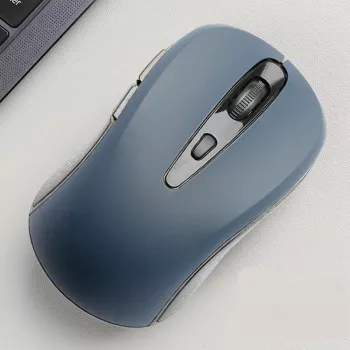
Wireless 2.4 GHz Ergonomic Gaming Mouse for Apple Devices
A compact 2.4 GHz wireless mouse can be a simple upgrade for Mac and other Apple setups: less cable clutter, consistent cursor control, and a hand-friendly shape for longer sessions. This guide covers what to expect from a USB-receiver gaming-style mouse on Apple devices, how to set it up quickly, and how to get stable performance for work and play.
What this mouse is designed to do
A 2.4 GHz USB receiver mouse is built around a straightforward idea: plug in a tiny receiver and get a reliable connection without Bluetooth pairing screens.
- Connects through a 2.4 GHz USB receiver rather than pairing over Bluetooth.
- Aims for responsive pointer control suited to fast cursor movement and frequent clicking.
- Ergonomic shaping intended to reduce wrist strain compared with flat, travel-style mice.
- Best fit for desks and lap desks; less ideal for glass surfaces without a mouse pad.
Apple device compatibility and what to check before buying
Most USB receiver mice work great with macOS as long as you can physically connect the receiver. iPad support can be possible, but it depends heavily on your iPad model and adapter/hub quality.
Quick compatibility checklist
| Device | What you need | Notes |
|---|---|---|
| Mac with USB-A | No adapter | Plug in the receiver and start using it |
| Mac with USB-C only | USB-C to USB-A adapter or hub | Choose a reliable hub to avoid dropouts |
| iPad with USB-C | USB-C hub/adapter | Pointer support depends on iPadOS settings and app behavior |
| iPad with Lightning | Compatible Lightning adapter | Power and adapter quality can affect detection |
- Mac desktops and MacBooks: confirm a USB-A port is available, or plan to use a USB-C to USB-A adapter/hub on newer models.
- iPad: works only when the iPad can use external USB devices via a compatible adapter.
- Apple TV and iPhone: typically not a match for USB receiver mice; expect limited or no support.
- macOS permissions: pointer should work immediately; extra buttons may require app-specific mapping if supported.
For Apple’s official guidance on settings and adapters, see Apple Support: Change Mouse settings on Mac and Apple Support: USB-C adapters and cables.
Setup in minutes (macOS and iPadOS)
Most 2.4 GHz receiver mice are close to plug-and-play. A quick setup pass helps avoid “why does this feel weird?” moments with scrolling and tracking speed.
- Insert the USB receiver into a direct port or a powered hub if available.
- Turn the mouse on (and insert/charge the battery if required by the model).
- On macOS: adjust Tracking speed and Scroll direction in System Settings > Mouse.
- On iPadOS: confirm AssistiveTouch/Pointer settings are enabled and tune tracking speed and scrolling behavior (Apple’s iPad pointer help is here: Connect a Bluetooth mouse or trackpad to your iPad).
- Test click, right-click, scroll wheel, and any side buttons in a browser and a productivity app.
2.4 GHz wireless performance: stability, lag, and range
Compared with Bluetooth, a USB receiver often feels more “set it and forget it,” especially at a desk where the receiver can stay plugged in. To keep tracking smooth, placement matters more than most people expect.
- 2.4 GHz receiver connections are often straightforward: plug-and-play without pairing screens.
- Keep the receiver away from USB 3.0 interference hotspots when possible (a short USB extension can help in crowded setups).
- Maintain line-of-sight and avoid placing the receiver behind dense metal objects or stacked dongles.
- If the pointer stutters, test another port, remove nearby wireless dongles temporarily, and try a different hub.
2.4 GHz receiver vs Bluetooth vs wired (practical differences)
| Connection type | Strengths | Trade-offs |
|---|---|---|
| 2.4 GHz USB receiver | Fast setup; consistent connection for many desks; no Bluetooth pairing required | Needs a USB port/adapter; receiver can be misplaced |
| Bluetooth | No dongle; good for travel and minimal ports | Pairing steps; can be affected by crowded Bluetooth environments |
| Wired USB | No battery concerns; stable link | Cable drag; less convenient for portable setups |
Ergonomics for longer sessions
An ergonomic mouse shape helps most when it supports a neutral wrist and encourages a lighter, less tense grip. Small adjustments to posture and surface can make as much difference as the mouse itself.
- Look for a natural hand position with relaxed fingers and a neutral wrist angle.
- Use a light grip; let the mouse shape support the palm rather than pinching with fingertips.
- Consider desk height and chair arm placement—poor posture can negate ergonomic benefits.
- If wrist discomfort persists, rotate between mouse and trackpad, and consider a supportive mouse pad.
Controls, scrolling, and everyday usability on macOS
Gaming-style use on Apple devices (what to expect)
Battery and power habits that prevent dropouts
Troubleshooting quick fixes
Product options (in stock)
- Wireless 2.4 GHz Ergonomic Gaming Mouse for Apple Devices ($4.51)
- Gold Metal Decorative Ring Charms for Apple Watch Bands ($3.01)
- Luminous Wooden LED Light Globe 3D Puzzle Model Kit ($41.97)
At-a-glance details
| Item | Details |
|---|---|
| Name | Wireless 2.4 GHz Ergonomic Gaming Mouse for Apple Devices |
| Availability | In stock |
| Price | $4.51 USD |
| Product page | View product |
FAQ
Will a 2.4 GHz USB receiver mouse work on a MacBook with only USB‑C ports?
Yes. Use a USB‑C to USB‑A adapter or a USB‑C hub that supports USB devices, then plug the receiver into the adapter/hub.
Why does my wireless mouse stutter or lag on macOS?
Try a different USB port, avoid crowded hubs, and move the receiver closer with a short hub/extension. Nearby wireless dongles and poor-quality hubs can also cause intermittent stutter.
Can I use a USB receiver mouse with an iPad?
Sometimes. It can work if the iPad and the adapter/hub support USB peripherals and pointer features are enabled, but results vary by iPad model, adapter power, and the app you’re using.








Leave a comment